If Your API Key Leaked in the OpenCode Breach
What to do when an API key is exposed in OpenCode.
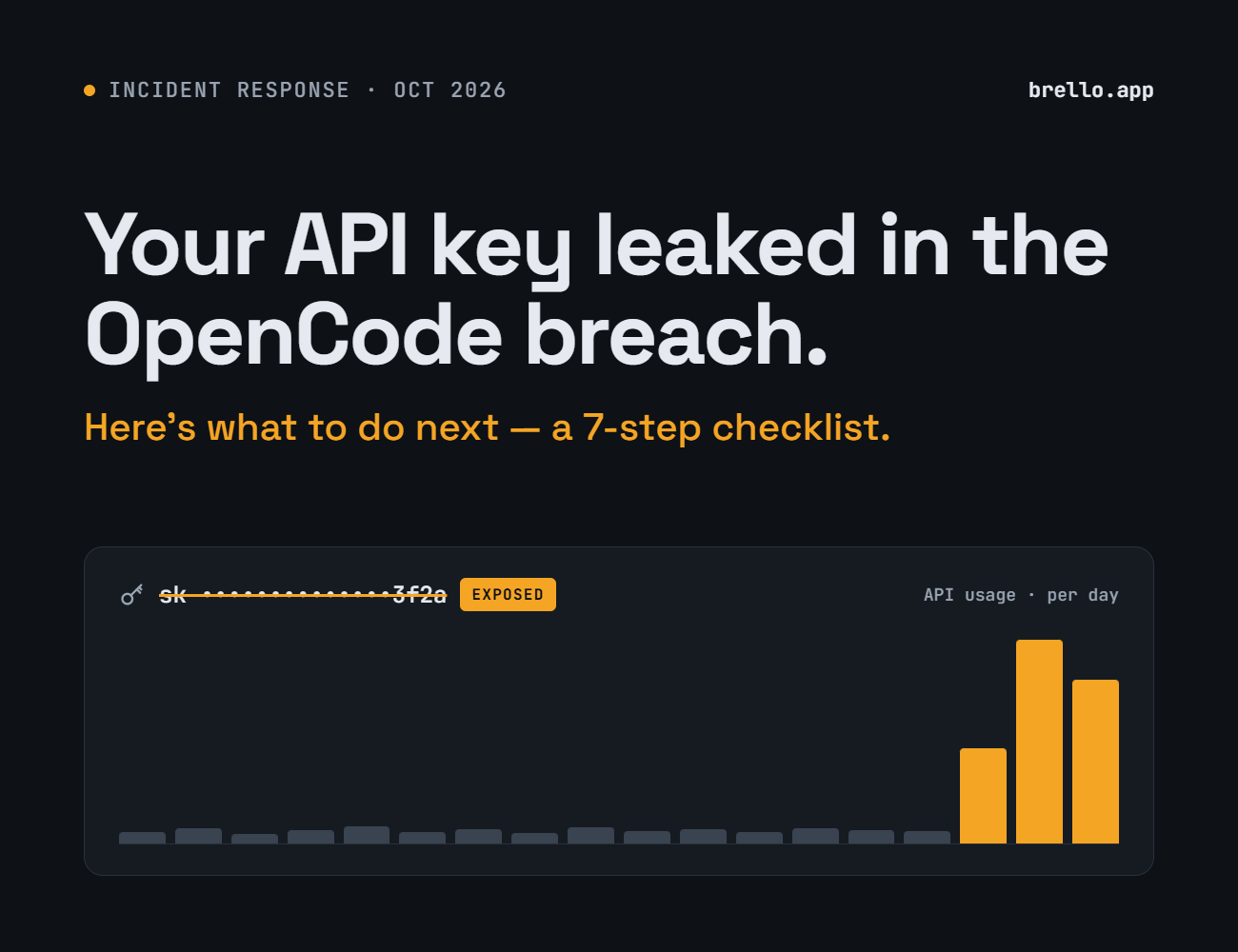
On October 17, OpenCode disclosed a security breach tied to a large-scale distillation attack. An intruder got into a legacy system that was being decommissioned, and the OpenAI, Anthropic, and Google API keys that about 1.4% of OpenCode Console users had saved in Console may have been exposed. (Keys stored locally in the CLI or desktop app are not affected.)
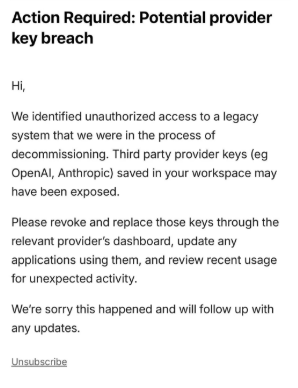
OpenCode emailed affected users with the subject line “Action Required: Potential provider key breach.” Soon after, people on X and Reddit started reporting the damage: some woke up to more than $400 in charges from a single provider, while others lost over $1,700 in total overnight.
If you got that email, or if you’ve ever connected a key to Console, here’s a checklist of what to check right now.
1. Check whether you’re affected
The first thing to do is figure out whether your API key is actually in scope.
OpenCode says it emailed every potentially affected user with the subject line “Action Required: Potential provider key breach,” like the one shown above. Search your inbox for that subject line first, and check your spam folder too.
If you only used your API key in the CLI or desktop app, it’s stored on your own machine and isn’t part of this breach. But if you also added the same key to Console at any point, it may be affected, so double-check. The safest approach is to go by the email and also confirm for yourself whether each key was exposed.
2. Delete the key
Go to each provider’s console (OpenAI, Anthropic, Google) and delete any key you used with OpenCode, right away. Once a key is deleted, an attacker can’t use it again. A leaked key shouldn’t be reused, so delete it instead of just disabling it. If a key suddenly stops working, the provider may have already revoked it.
2.1. OpenAI
According to OpenAI’s documentation, you can manage your keys on the API keys page. Find the key you added to OpenCode Console and click the trash icon on the right to delete it. Once deleted, the key stops working immediately, so if you use the same key anywhere else, generate a new one and swap it in.
2.2. Anthropic
According to Anthropic’s documentation, you can manage your keys on the API keys page while signed in to Claude Console. Click the three horizontal dots (⋯) next to the key and select Delete API key. As with OpenAI, the key stops working immediately, so replace it anywhere else you use it.
Anthropic has also reportedly revoked some of the affected keys, so a key leaked through OpenCode may not show up on the keys page. Don’t assume that means you’re in the clear, though. The key might belong to a different workspace or organization, so check all of them, and review your usage and billing separately.
2.3. Google
For Google, you can manage your keys in Google AI Studio. Click the three vertical dots (⋮) next to the key and select Delete API key. Like the others, the key stops working immediately, so replace it anywhere else you use it.
Note that AI Studio only shows keys that are unrestricted or restricted to the Gemini API, so the leaked key may not appear there. If you can’t find it, check the Credentials page in the Google Cloud console.
Google’s documentation recommends rolling out a new key first to avoid downtime. But if money is actively draining from your account, it may be safer to cut the key off now, even if your service goes down briefly. Use your judgment based on your situation.
Google also has an official leak response checklist. It’s worth reading before you move on to the next step.
3. Stop the bleeding
If the key has already been used, the next step is making sure no more money goes out. Deleting the key doesn’t cancel charges that have already built up, so keep auto-reload turned off until the issue is resolved. Set your monthly spending limit as low as you can, and keep an eye on your bank and card statements.
3.1. OpenAI
On the OpenAI billing page, click Manage auto-reload, turn off the Use auto-reload toggle at the top, then click Save.
3.2. Anthropic
On the Claude Console billing page, click Manage next to Auto Reload, then click Turn Off at the bottom.
3.3. Google
Gemini API billing comes in two plans, Prepay and Postpay, and auto-reload only exists on Prepay. If you’re on Postpay, there’s no auto-reload to turn off, so check your monthly spend cap instead. The Gemini API supports monthly spend caps at both the billing account and project level. You can manage auto-reload and spend caps on the Google AI Studio billing page.
4. Gather evidence before you contact support
The most common mistake is panicking and immediately messaging support with something like “I got hacked, please refund me.” Your first message often decides how the case gets categorized, and it can be hard to change that outcome later, even if you add evidence afterward. Taking a few extra minutes to prepare usually costs you less than sending a first message with nothing to back it up. Go through the checklist below first.
Don’t delete your account, workspace, or project before you’ve gathered evidence. Your usage history could disappear with it. The only thing you should delete is the key.
4.1. Proof of how the key leaked: the OpenCode notice email
This is the strongest piece of evidence you have. It shows the key was exposed through a breach at a third-party service, not because you accidentally made it public.
- A screenshot of the email, with the sender, time received, and subject line all visible
- The original email file. In Gmail, open the email, click ⋮, then Download message to save it as an
.emlfile and attach it. An original file is harder to dispute than a screenshot. - A link to OpenCode’s official post on X, plus one or two links to news coverage
4.2. Proof of the damage: usage and billing
- Screenshots of your usage and billing pages. Set the date range wide enough to include at least 2–4 weeks before the incident, so the spike stands out against your normal usage at a glance.
- If possible, a breakdown by key and by model. If the usage is concentrated on models you never use, that alone is strong evidence.
- If there’s an export option (CSV, etc.), save the raw data too. Screenshots are for showing, raw data is for calculating.
4.3. Proof it wasn’t you: timing
- When the unusual usage started and stopped. Always include the time zone, since provider dashboards often display times in UTC.
- Anything showing you weren’t using the key at that time, like being asleep or your own service’s traffic looking normal. If your app logs show far fewer requests than the provider’s usage, that’s good evidence.
4.4. Proof of the charges: payment records
- Invoices and receipts from the provider, including credit purchases and auto-reloads
- The actual transactions from your card or banking app (date and time, amount, merchant name)
- Any failed payment attempts, recorded separately. You’ll often get asked about them later.
4.5. Proof you responded properly
- When you deleted the key (take a screenshot of your key list right after)
- When you turned off auto-reload and set a spending limit
- When and how you first noticed the problem (the email, a payment alert, etc.)
A record of a quick response is one of the best ways to keep your case from being treated as user error.
4.6. Put it all together: build a timeline
Put everything in one folder and make a one-page timeline like the one below. This becomes the backbone of your first message.
| Time (UTC) | What happened | Evidence file |
|---|---|---|
| 10/16 15:30 | Unusual usage begins | usage_1016.png |
| 10/17 00:12 | OpenCode breach notice received | opencode_notice.eml |
| 10/17 00:20 | Key deleted, auto-reload turned off | keys_after_delete.png |
| … | … | … |
The times above are examples.
Once you have all this ready, it’s time to reach out.
5. Contact support once, calmly
Stick to facts, not feelings. Instead of how stressed you are, write down what happened and what you did about it. If you built the timeline in step 4, your message is basically that timeline written out in sentences.
5.1. What your first message must include
- How the key leaked: “My key was exposed in the OpenCode Console breach.” Always attach the official notice email. It’s the most important thing separating your case from one where you leaked the key yourself.
- Which key: The key name, the last few characters, and the project or workspace name. Never include the full key.
- When: When the unusual usage started and stopped, with the time zone
- How much: The unauthorized amount and the payment records
- What you did: When you deleted the key and turned off auto-reload
- What you’re asking for: A refund or credit for the unauthorized usage, and confirmation that no further charges will occur. Be explicit about what you want.
5.2. Example first message
Subject: Unauthorized API usage after OpenCode Console breach (Oct 16–17)
Hi, my API key stored in OpenCode Console was exposed in the OpenCode security breach disclosed on Oct 17, 2026 (notice email attached).
- Key: [key name], ending in [last 4 chars], project [name]
- Unauthorized usage: [start] – [end] UTC
- Unauthorized charges: $[amount] (invoices/receipts attached)
- Actions taken: key deleted at [time] UTC, auto-reload disabled at [time] UTC
I did not make these requests. Before [date], my usage was around $[normal amount] per day (screenshot attached). Could you please review this, refund or credit the unauthorized charges, and confirm that no further charges will occur?
Thank you.
5.3. Where to send it
| Provider | Where to go |
|---|---|
| OpenAI | The chat in the bottom-right corner of the Help Center, or email support@openai.com from your account email |
| Anthropic | Contact the support team via How to get support |
| Open a billing support case in the Google Cloud console |
5.4. After you send it
- Save your case number. Use it for every follow-up.
- Don’t open new tickets for the same issue. They can get handled separately and slow things down.
- If you post in a public community, do it once and include your case number. Never post your key, card details, or account information publicly.
- The first reply may come from an AI bot, and it can take days or even weeks before a human picks up your case. A slow reply doesn’t mean you’ve been turned down.
6. While you wait
6.1. Know about chargebacks, but don’t rush into one
A chargeback is when you dispute a card payment and your card issuer investigates and reverses it. Think of it as a last resort for when the provider never responds or refuses a refund.
Things to know:
- There’s no guarantee. Your card issuer makes the call, and the provider can push back by saying the usage was legitimate. The evidence you gathered in step 4 matters here too.
- There’s a deadline. It depends on your card network, your issuer, and the reason for the dispute. Call your card issuer now, ask for the dispute deadline, and write it down.
- Your account could get suspended. Some providers reportedly treat a chargeback as a dispute and restrict the account. Be especially careful if you run a live service on that account.
- Watch out for double refunds. If both the provider’s refund and the chargeback go through, one of them may get charged back to you later. As soon as one is processed, let the other side know.
6.2. Recommended order
- Contact the provider first and get a case number.
- Ask your card issuer for the dispute deadline.
- If the deadline is getting close and you still have no answer, or you’ve been turned down, file the chargeback then. Include your correspondence with the provider.
6.3. You don’t need to replace your card
What leaked in this incident was your API key, not your card details. Freezing or replacing your card can cause legitimate payments for your services to fail and create new problems. Turning off auto-reload and setting a spending limit in step 3 is enough to stop further charges.
6.4. Other things to keep in mind
- Every few days, in the same case thread, send a short message asking for an update.
- Keep an eye on usage for your new keys and your keys with other providers for the next few days.
- Save every email and chat. If you end up filing a chargeback, they become evidence.
7. Next time
When you hand a key to a third-party service, create a separate key just for that service. Set a spending limit on it too, so a leak can only do limited damage. It’s also a good idea to delete keys you’re no longer using on a regular basis.
If you were hit by this breach and don’t know where to start, email us at hello@brello.app. We’ll take a look at your situation and give you free advice.